4.4.1.3.5 Print receipt as invoice
When a customer requires an invoice for the items they have purchased, the Print receipt as invoice function can be accessed from the Favorites menu. Important: The customer must request the invoice before the transaction is closed.
Steps to print a receipt as an invoice:
Open the RETAIL7 app.
Enter your login data and log in.
Open the Print receipt as invoice menu from Favorites.
Once activated, the text on the receipt print button changes to Print receipt as bon.Use the Back button to return to the cart view. You can now add items to the transaction and proceed to checkout.
On the payment screen, the option Print receipt as A4 invoice is already checked.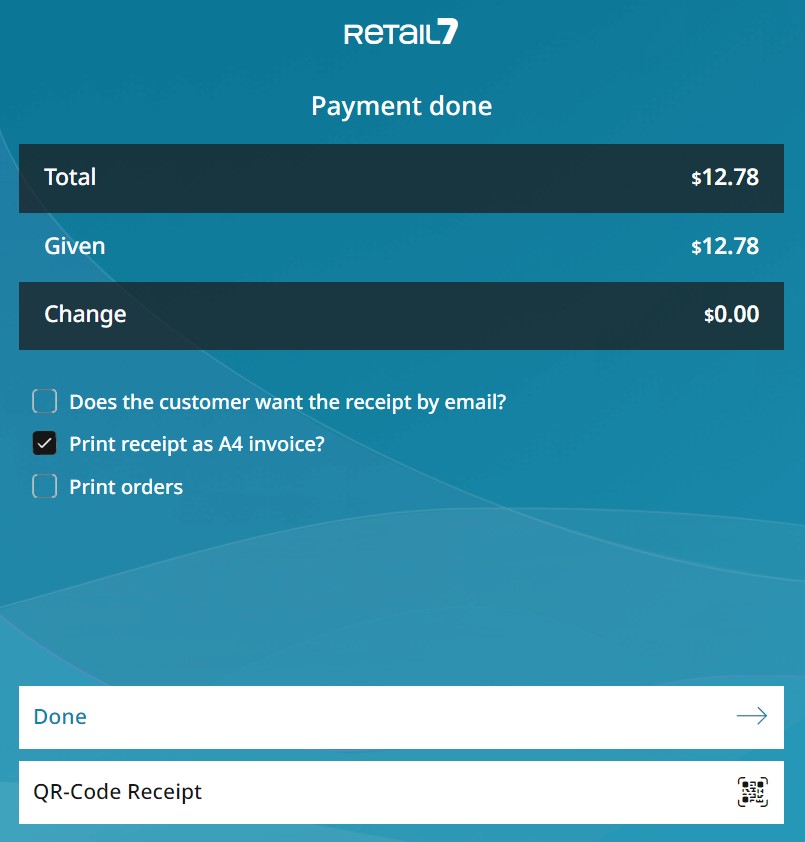
Click the Done button to proceed to the next screen.
Here you can assign an existing customer to the invoice, edit contact details, search the contacts database, or create and add a new customer.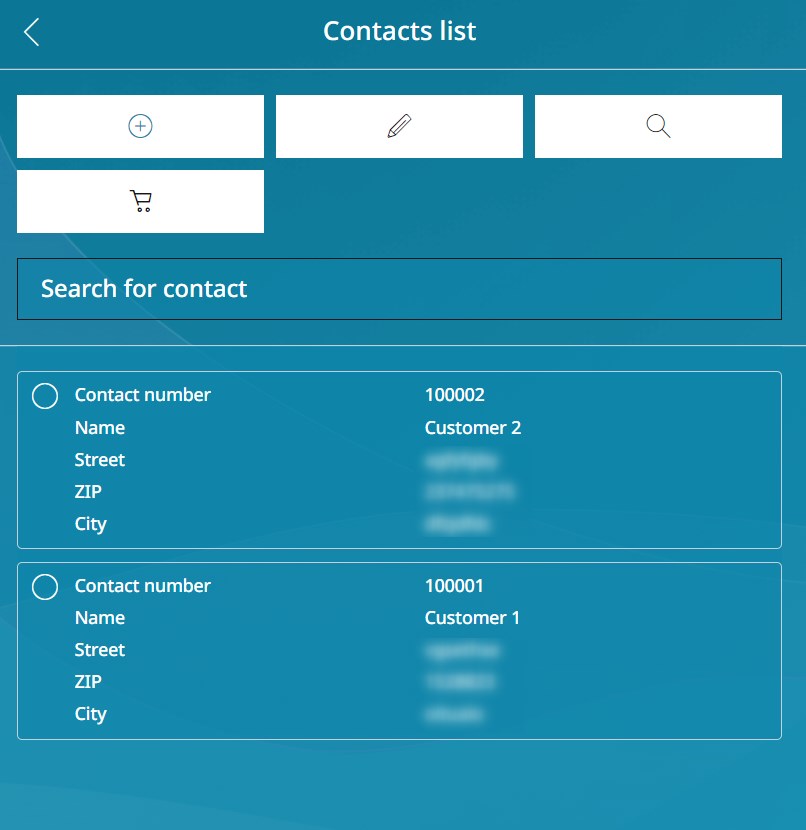
After assigning a contact, click the shopping cart button to print the invoice.
Note: This function can also be accessed for any transactions at the final step of checkout by selecting the Print receipt as A4 invoice option.