11.4 Roles
The RETAIL7 system offers various defined roles that can be created with different rights, depending on the chosen business plan.
These roles by default are as follows:
Administrator |
|
Store manager | Logging into the App and Management Console Access to:
|
Cashier |
|
The person who registered the system has the administrator role, which can be assigned to other users.
Each role has different access rights, but a user can have several roles at the same time, if necessary.
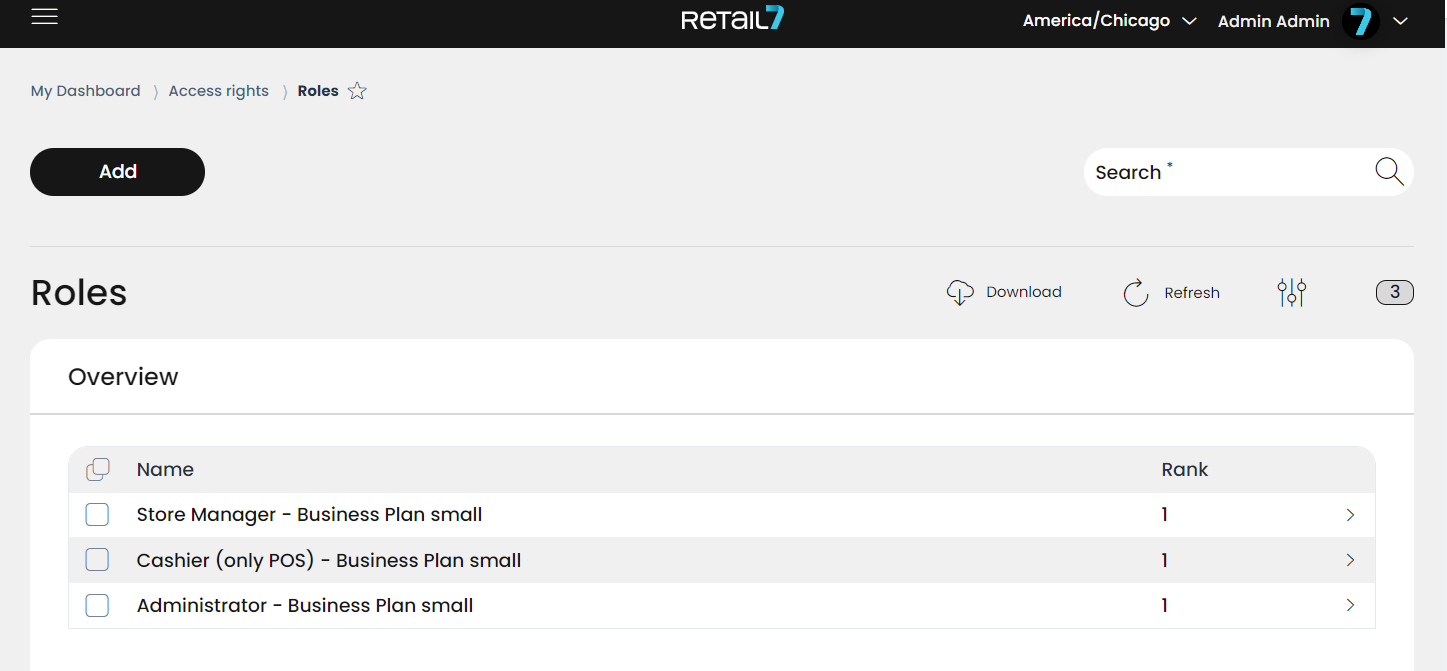
The number 3 in the screenshot indicates that there are currently 3 roles in the overview. Additionally, roles can be downloaded as CSV, JSON and XLSX. The list can be refreshed at any time, showing changes for the roles after refreshing. The search function can be used to filter out a specific role.
Creating a new role
New roles can be created only by users that have the appropriate access rights for that.
Open Menu → Access Rights → Roles.
Click on Add.
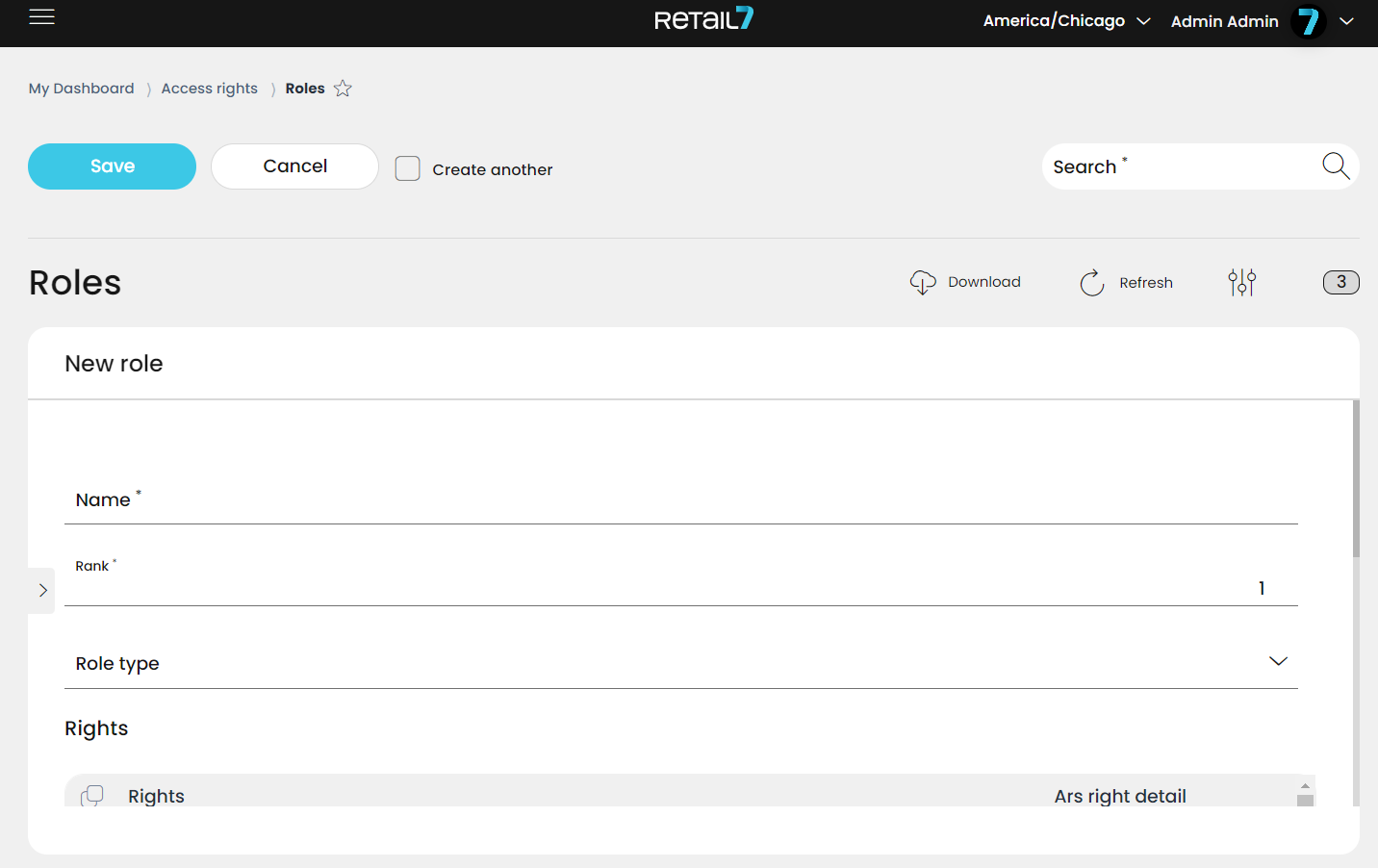
Enter a name and the corresponding rank.
Choose the Role type.
The role can be found via this name, with the help of the search function.
Place a tick next to all the rights that the role is entitled to.
For each right, a distinction can be made between read, create and update. It is also possible to assign all of these 3 differentiations.
Click on Save.
The new role is now displayed in the list overview.
Editing and deleting roles
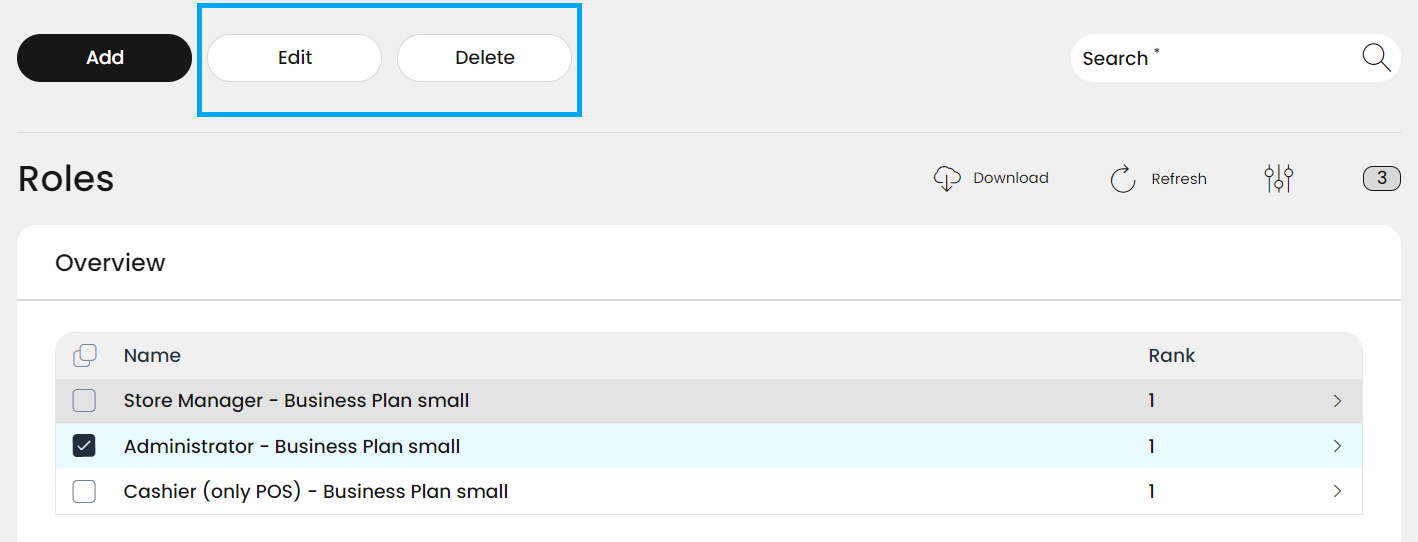
To edit a role:
Click on the role to be edited in the list.
Click on Edit.
Do all changes in the detail window.
Click on Save.
To delete a role:
Click on the role to be deleted.
Click on Delete.
Confirm the request with Yes.
The role is deleted from the list overview.
Assigning rights to roles
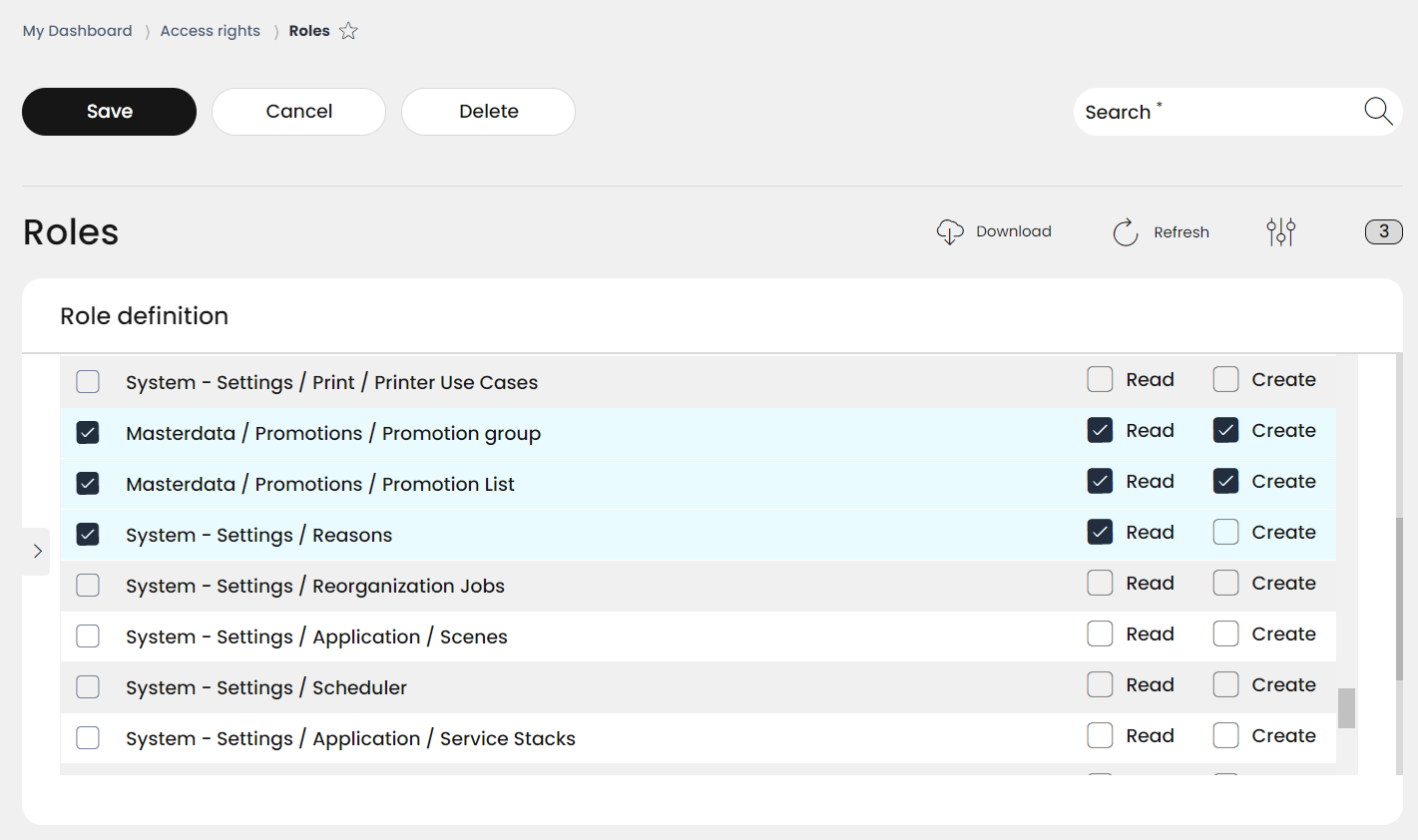
It is possible to assign different rights to each role. This gives the user different access rights to the menus of the Management Console. This function is particularly important because it avoids that every user can be able to change system-relevant settings, such as item creation, price allocation, or, e.g. enabling unauthorized rights to their own roles. Thus, the role and rights system is an important security-relevant setting for the POS system.
Example: In this case, the role has the right to read and create Masterdata Promotion settings, but at System settings / Reasons they have the right only to read, but not to create.